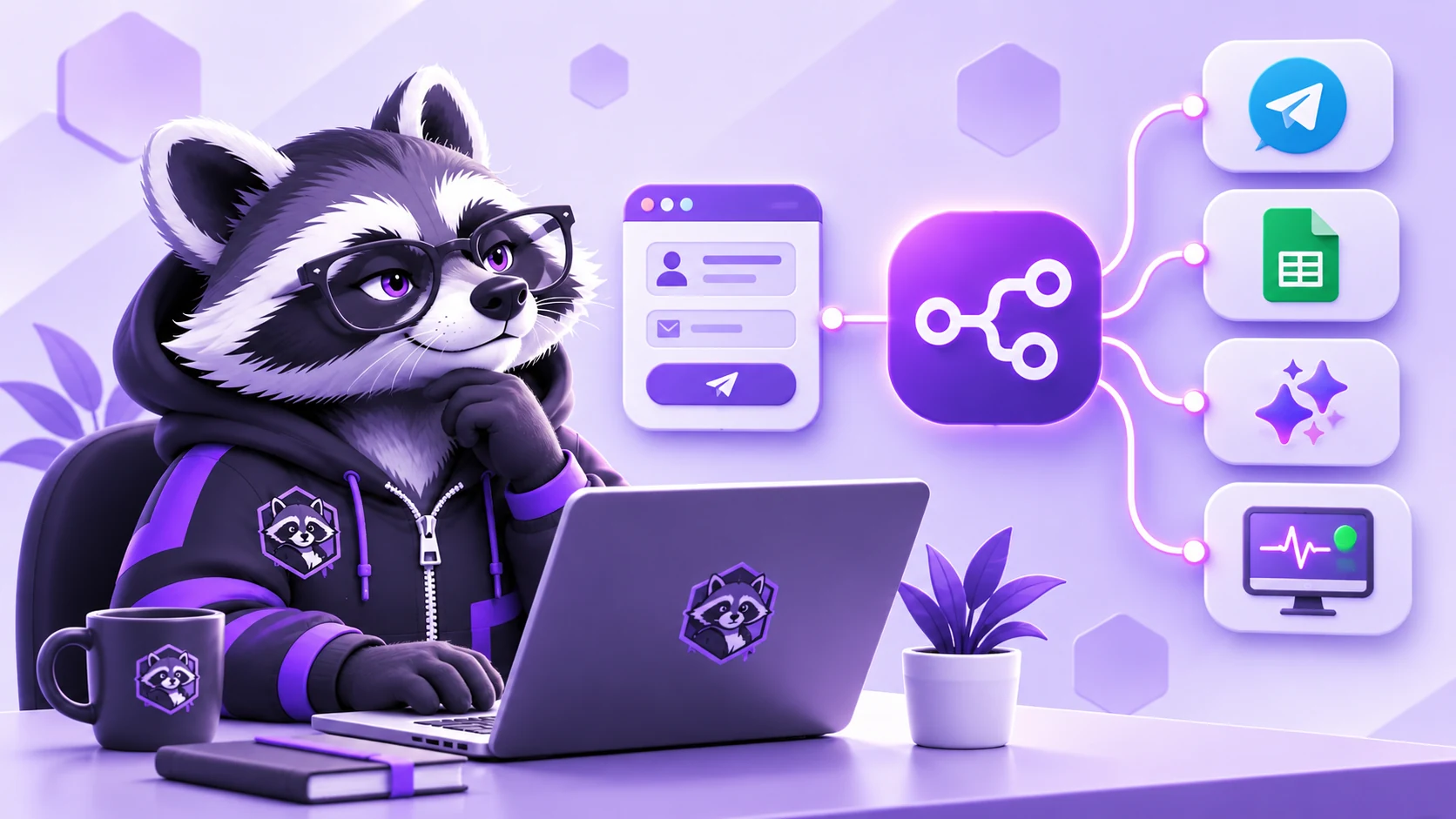
Automation
How to Build Your Own AI Agent with n8n and Automate Everyday Tasks
Checking email, replying to messages, copying customer details into spreadsheets and preparing reports are ordinary parts of daily work.
Each task may take only a few minutes, but together they can consume a surprising amount of time.
An AI agent can take over some of this repetitive work. It can interpret information, use connected applications and carry out specific actions.
You do not necessarily need advanced programming skills to build one. With n8n, many automations can be created using a visual workflow editor.
Here is how the technology works and how to build a simple agent yourself.
What is an AI agent?
A traditional chatbot mainly responds to questions.
An AI agent can go further because it has access to tools that allow it to perform actions.
For example, an agent connected to Google Sheets can add information to a spreadsheet. With calendar access, it can search for available times or create events. When connected to email, it can find messages and prepare draft replies.
These capabilities are not automatic.
You must configure each integration and decide which permissions the agent receives.
Why are AI agents useful?
Their main advantage is the ability to reduce repetitive work.
A small business owner might use an agent to organize incoming requests. An office employee could automate parts of daily reporting. Someone managing several projects might use an agent to summarize messages and identify tasks requiring attention.
Consider a person who spends 40 minutes each working day copying information between applications.
If automation reduces that work by 75%, the time saved over 22 working days would be approximately 11 hours.
This is an illustrative calculation rather than a guaranteed result. Actual savings depend on the process, the quality of the automation and how much human review is required.
The goal is to spend less time moving information around and more time making useful decisions.
What is n8n?
n8n is a workflow automation platform that connects applications and services.
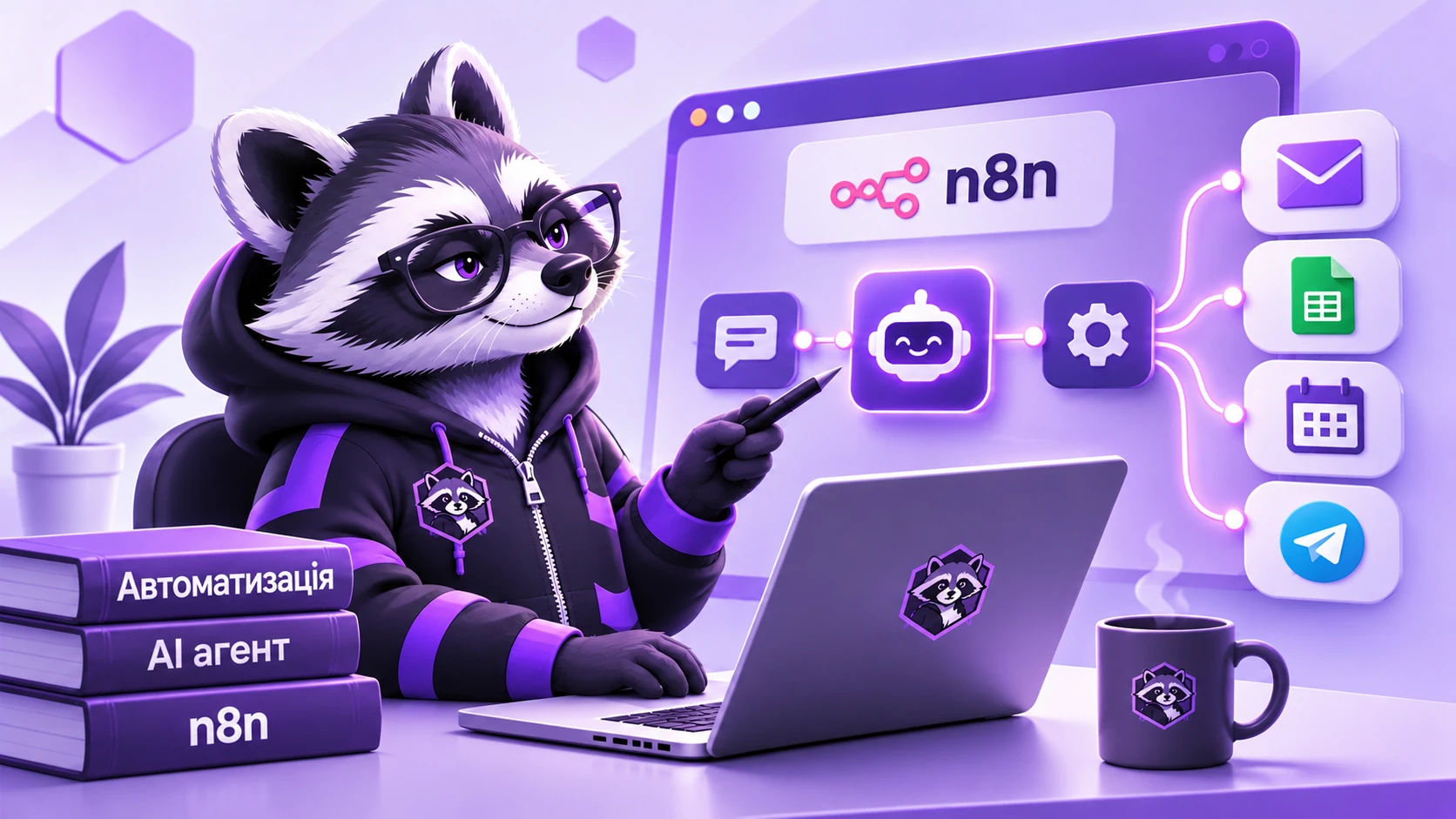
Its visual editor uses building blocks called nodes.
One node receives a message. Another sends information to an AI model. A third updates a spreadsheet, while another delivers a notification.
Together, these nodes form a workflow.
n8n is available as a hosted cloud service and can also be installed on your own server.
Self-hosting offers greater control over infrastructure, although it also requires maintenance, updates and backups.
Do you always need an AI agent?
No. Many tasks are better handled by ordinary automation.
If every contact form submission should simply create a new spreadsheet row, a standard workflow is usually sufficient.
An AI agent becomes useful when the system must interpret language or choose between different actions.
A customer might ask about pricing, describe a technical problem or request a change to an appointment.
An agent can classify the message and select an appropriate connected tool.
This distinction matters because conventional workflows are often simpler, less expensive and easier to predict.
Building your first AI agent
We will create an assistant that suggests social media content ideas and saves them to Google Sheets when requested.
It is a straightforward example with an outcome that is easy to verify.
Step 1. Prepare your accounts
You will need access to n8n, a Google account and an AI model that supports tool calling.
You can use n8n Cloud or a self-hosted installation.
If you choose OpenAI API, you will need an API key and the appropriate API billing setup.
A ChatGPT subscription does not automatically include API usage.
Step 2. Create a workflow
Open the n8n editor and create a new workflow.
Add a Chat Trigger node, which may appear as On chat message in the trigger selection interface.
This node lets you interact with your agent through a test chat.
Keep the chat private while configuring and testing the workflow.
Step 3. Add AI Agent
Add the AI Agent node and connect it to the Chat Trigger.
The AI Agent node receives user messages, works with the language model and can call connected tools.
Step 4. Connect a language model
Find the Chat Model connection beneath the AI Agent node.
Add a compatible model, such as OpenAI Chat Model.
Configure the provider credentials, enter your API key and select an available model that supports tool calling.
Save the configuration.
Step 5. Write the agent's instructions
Open the AI Agent settings and find System Message. Depending on the editor version, it may be located under Options.
Enter the following instructions:
"You are an assistant that helps users plan social media content. Suggest practical topics, clear titles and short descriptions. Each idea must include a platform, title, description and call to action. Do not invent facts. Save ideas to Google Sheets only when the user explicitly requests it. After taking an action, explain the result. Ask a clarifying question when necessary information is missing."
These instructions are written in ordinary language. No programming syntax is required.
Step 6. Add conversation memory
Connect Simple Memory to the AI Agent's Memory input.
For the standard Chat Trigger setup, use the session identifier provided by the connected trigger.
Set a small context window, such as 5 messages.
The agent can now use earlier messages from the conversation when interpreting follow-up requests.
Simple Memory is suitable for an introductory example. More complex production systems may require a different memory backend.
Step 7. Connect Google Sheets
Create a spreadsheet with four columns:
Platform, Title, Description, CTA.
Connect Google Sheets Tool to the AI Agent's Tool input.
Choose the Append Row operation, authenticate your Google account and select the correct document and sheet.
Map the four fields. Where supported, you can allow the model to determine individual tool parameters automatically.
Make sure the integration has permission to update the intended spreadsheet.
Step 8. Test the agent
Open the test chat and enter:
"Suggest three Instagram post ideas about using AI in a small business."
After reviewing the response, enter:
"Save these three ideas to Google Sheets."
Open your spreadsheet and check whether three new rows have been created.
If the operation fails, inspect the Executions history in n8n.
Check the Google credentials, spreadsheet selection, column names and tool configuration.
What else can you automate?
Once the first workflow is working, you can apply the same principles to more useful tasks.
An agent can help process website inquiries, classify messages and record relevant information in a CRM.
Another workflow can run on a schedule, collect business metrics and ask an agent to prepare a short report.
Email organization is another practical use case. An agent can identify important messages, group them by topic and prepare draft replies.
Start with one task and measure whether the automation actually saves time before adding more complexity.
Security and human oversight
AI agents can make mistakes. They may misunderstand instructions or choose an inappropriate action.
For that reason, sensitive operations should not be fully automated without appropriate safeguards.
Deleting information, sending important emails and making payments should generally require human approval.
Access permissions should be limited, and execution logs should be reviewed regularly.
When processing personal data in the European Union, consider GDPR requirements and the data-handling terms of any external AI providers.
How much does an AI agent cost?
Costs depend on where n8n runs, which language model you choose and how frequently the workflow executes.
n8n Cloud has subscription plans and execution limits. A self-hosted installation involves server and maintenance costs.
Language model API calls and some third-party services may introduce additional charges.
For a simple workflow, the most expensive AI model is not necessarily the best choice.
Reliable tool use and predictable results matter more than model size alone.
Final thoughts
Your first AI agent does not need to be a complicated system.
A small assistant that consistently performs one useful task is a better starting point than an ambitious workflow with dozens of integrations.
Once the basic process works reliably, you can expand it gradually.
The real value of AI automation is not the technology itself. It is the time you get back when routine work no longer requires your constant attention.